


Why Is My Token Price Not Showing in Phantom Wallet? How to Fix It (2026 Guide)
Learn why your token price is not showing in Phantom Wallet and how to fix it. Discover the role of liquidity pools, trading activity, and market indexing in displaying token prices.
 CoinFactory
Why Phantom Wallet Doesn’t Display Your Token Price
You created a token, added it to Phantom Wallet, but the price shows as $0, No Data, or doesn’t appear at all. This is one of the most common issues for new token creators.
In most cases, the problem is related to missing liquidity, but there are several other reasons why Phantom cannot calculate and display a token price.
Common causes include:
- ⛔️ No liquidity pool has been created.
- ⛔️ The liquidity pool contains too little liquidity.
- ⛔️ The token has never been traded.
- ⛔️ Market data has not yet been indexed by price providers.
- ⛔️ The token is too new and Phantom has not updated its data yet.
In the vast majority of cases, creating a liquidity pool is enough to solve the problem.
Once liquidity is added, your token becomes tradable on decentralized exchanges, allowing market data providers and wallets such as Phantom to calculate and display its value.
Follow the instructions below to create a liquidity pool for your token.
How to Create a Liquidity Pool for Your Token
Step 1: Go to the liquidity pool creation page on CoinFactory
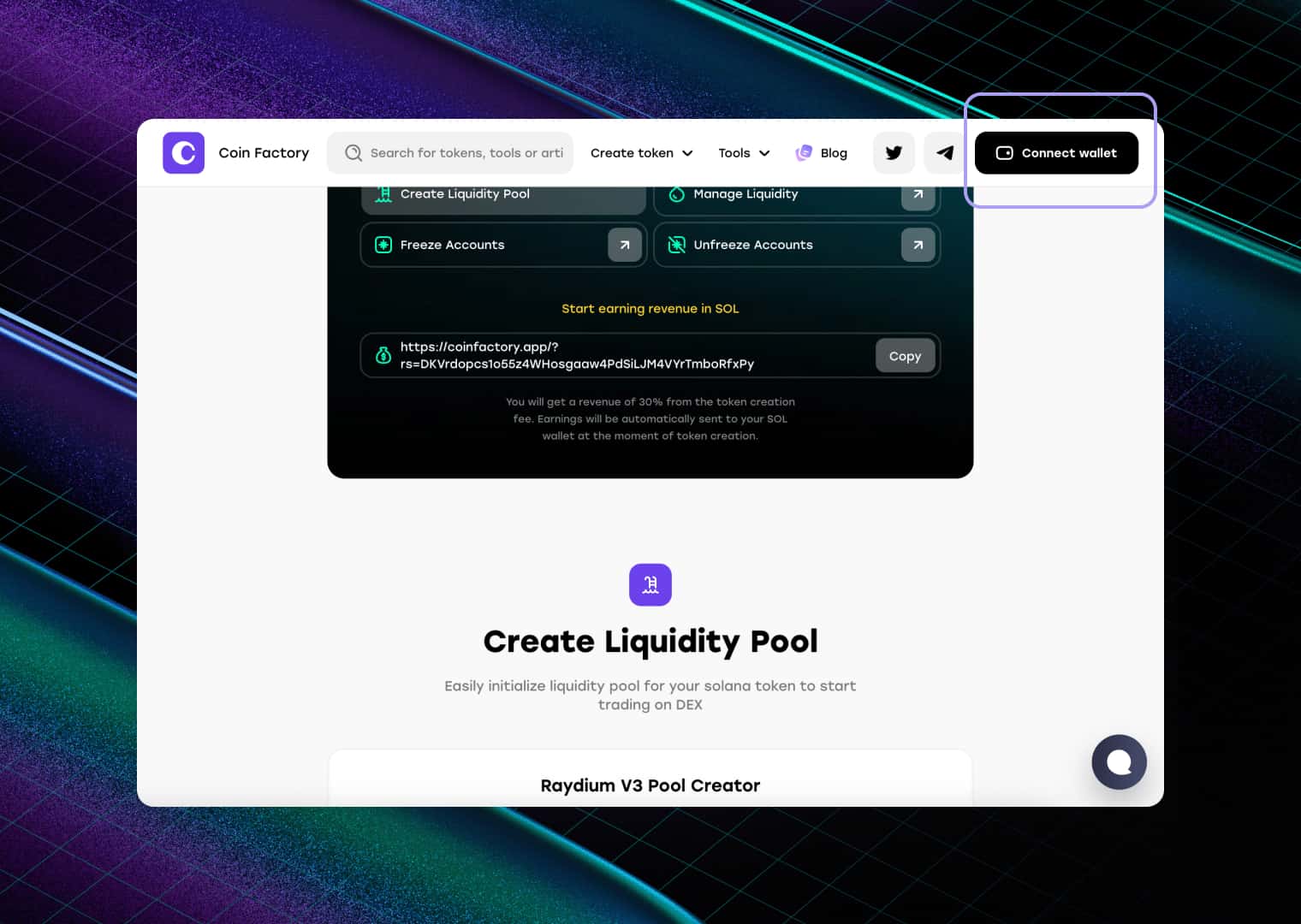
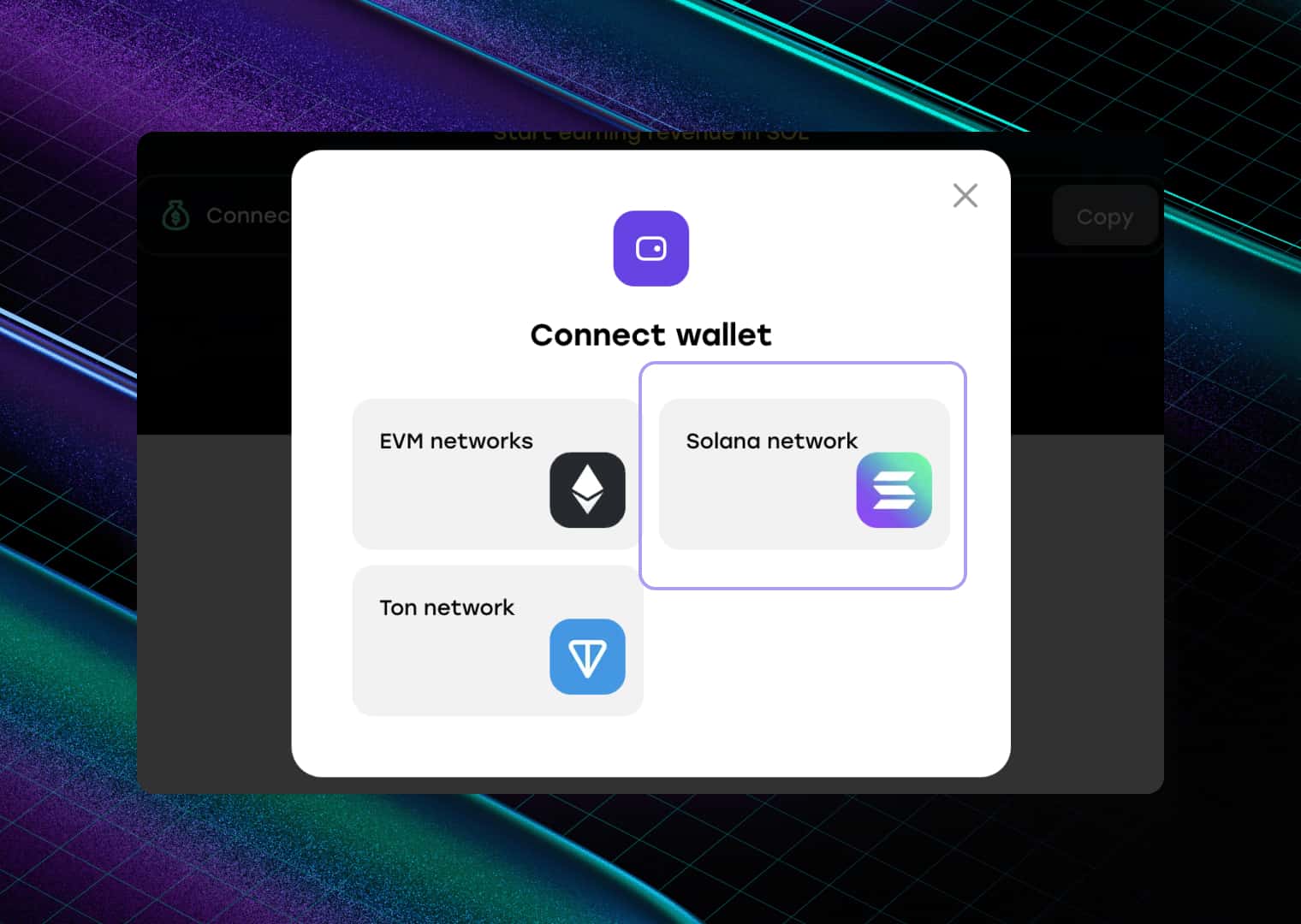
Step 2: Connect your wallet
Connect the wallet from which the token was created.
Step 3: Fill in the market data of your token
Fill in the following fields:
- 1️⃣ Base Token (Token Address): Paste the contract address of the token you created in the previous step.
- 2️⃣ Quote Token (Pair Token Address): Enter the Solana (SOL) address to create a trading pair between your token and SOL.
- 3️⃣ Base Amount: Specify how many tokens you want to add to the pool. These tokens will be available for traders to buy from the market.
- 4️⃣ Quote Amount: Enter how much SOL you want to add as liquidity. The amount of SOL you provide helps determine your token’s initial price and available liquidity. Generally, adding more SOL creates a deeper pool, allowing larger trades with less price impact.
- 5️⃣ Create Pool: Review the information and click “Create Pool”.
- 6️⃣ Confirm the Transaction: Approve the liquidity pool creation transaction in your wallet.
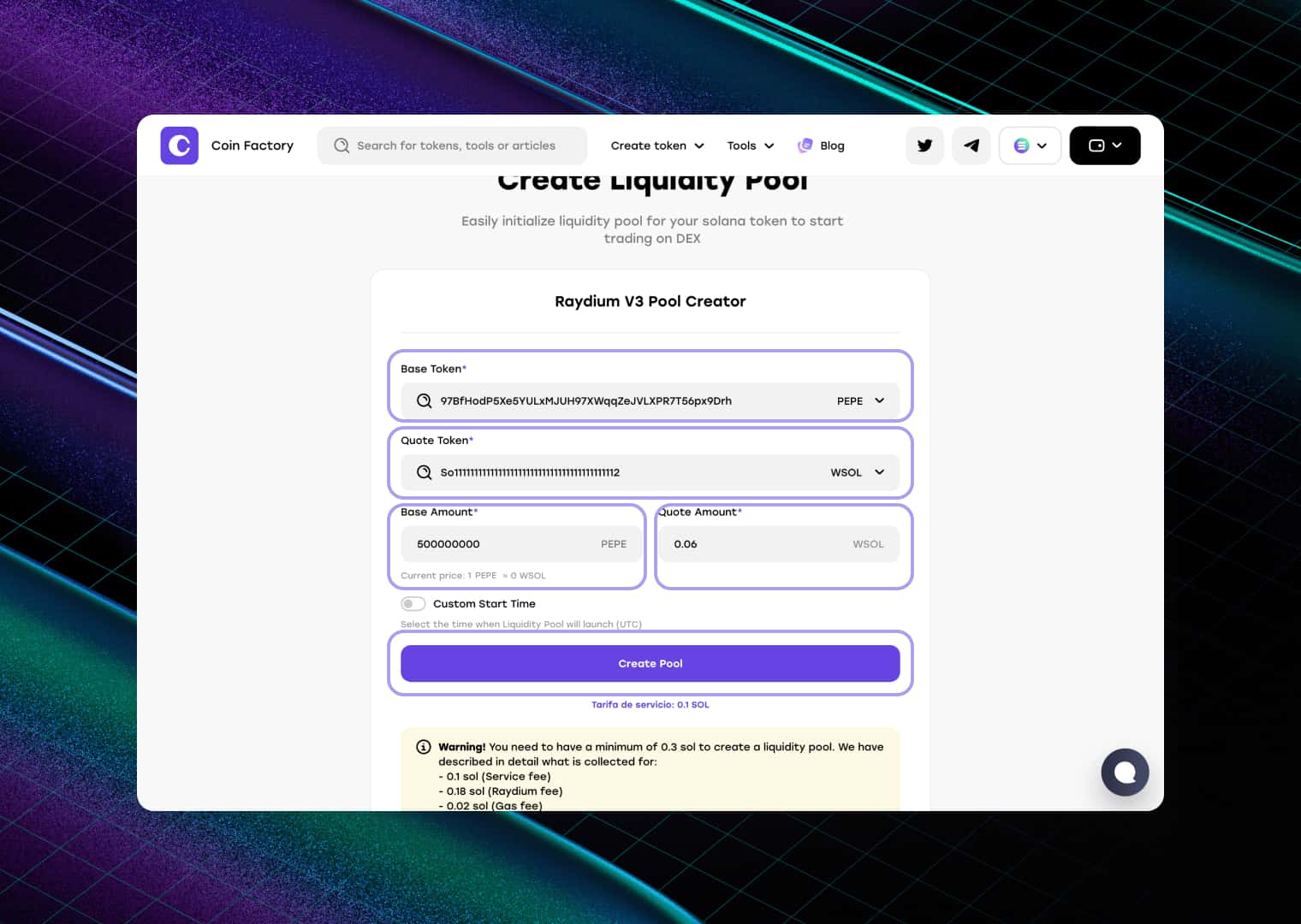
Once the transaction is confirmed, your liquidity pool will be live and your token will be ready for trading.
Step 4: Confirm the transaction in the wallet
After you confirm the creation of the liquidity pool, a transaction will appear in your wallet for signing, you need to sign it. Then the site will redirect you to your liquidity pool page.
🚀 Done
Your liquidity pool is now live, and your token can be bought and sold on the market. Once trading begins, Phantom and other crypto platforms can start receiving pricing data for your token.
Conclusion
If your token price is not showing in Phantom Wallet, the most common reason is that your token does not have an active liquidity pool.
Creating a token is only the first step. For Phantom to display a price, there must be a market where users can trade the token. Without liquidity, there is no reliable way to determine its value.
By creating a liquidity pool and adding liquidity, you enable trading on decentralized exchanges and allow market data providers to calculate your token’s price. As trading data becomes available, Phantom can begin displaying the token value, market price, and portfolio balance.
In most cases, the price appears automatically after the liquidity pool is created and indexed. If the token still shows no price, verify that the pool was created successfully, ensure liquidity has been added, and allow some time for market data services to update.
Tags

Guide
Solana
Token
Phantom wallet
Token price
Liquidity pool


